
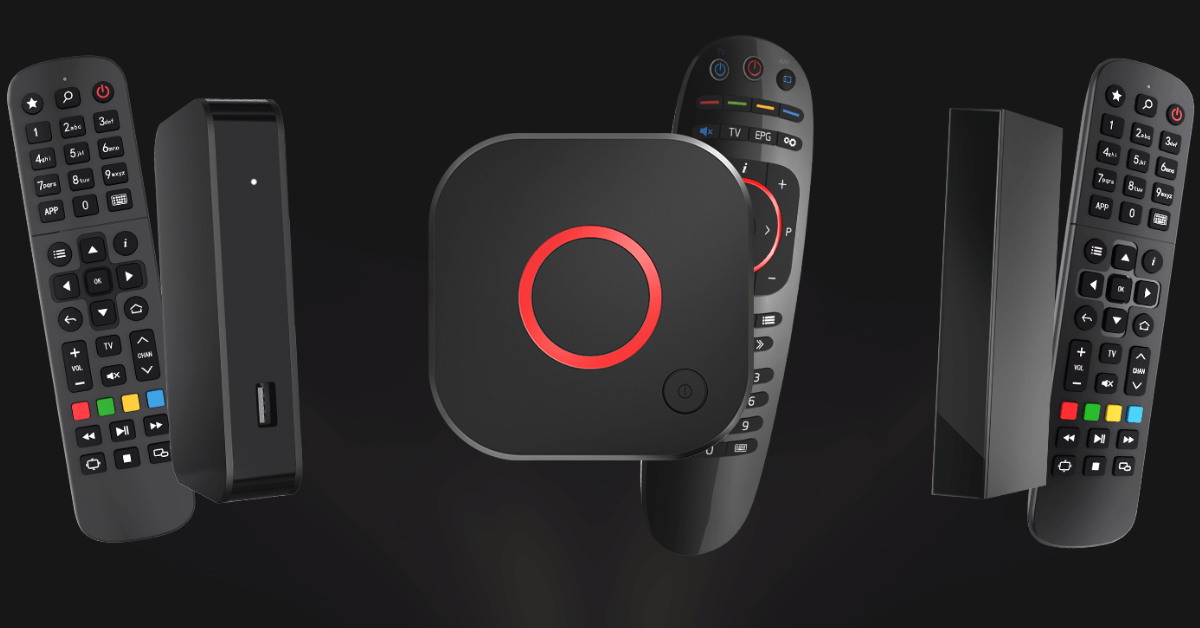
Setting up IPTV on your MAG box is quick and easy. Follow these simple steps to start enjoying your IPTV channels in just a few minutes.
Step 1: Access the Settings
- When the main portal screen appears, navigate to “Settings” using your remote control and click on it.
- You will be taken to a new window. Select “SETUP/SET” using the remote buttons.
Step 2: Open System Settings
- In the list of settings, find “System settings” and click on it.
- A drop-down menu will appear. Select “Servers”.
Step 3: Select Portals
- From the list of server options, choose “Portals”
Step 4: Enter IPTV Information
- In the “Portal 1 Name” field, enter a name for your portal, such as “IPTV”. (Can be anything!)
- In the “Portal 1 URL” field, enter the portal address provided by your IPTV distributor. (usually following this format : http://example1.com/c/)
Step 5: Save and Exit
- Double-check all the information you have entered to ensure it is correct.
- Press “OK” to save the settings.
- Click “EXIT” on your remote control to return to the previous menu.
Step 7: Finalize the Setup
- Press “OK” to save the changes you have made.
- Double-check all the settings for any errors.
- Click “EXIT” twice on the remote control.
- Restart your MAG box to apply the changes.
After the box restarts, you should be ready to watch live TV.
Enjoy your new IPTV setup and have fun exploring all the available channels.
IPTV ZoroAt 32, Matthew Connolly is an avid IPTV enthusiast and blog writer, known for his expertise in internet TV and streaming tech. Through his insightful blog, he provides quick tips, news, and reviews, helping readers navigate the world of IPTV with ease. His work simplifies streaming, making it accessible for all.